Student Mode content
School Coordinators can use Student Mode to create student access without affecting billing.
Step 1:
From your Home Page, click on the "More" button on the navigation bar, and select "Student Mode" from the drop-down menu.
Step 2:
Select the programs you would like to view as a student by checking the box in the " Add/Remove" column and click "Save".
Step 3:
After saving, the page will automatically refresh. Confirming you have been added as a student for the selected program(s) by the blue bar at the top of the page, and under the Status column, it will now say Enabled.
Step 4:
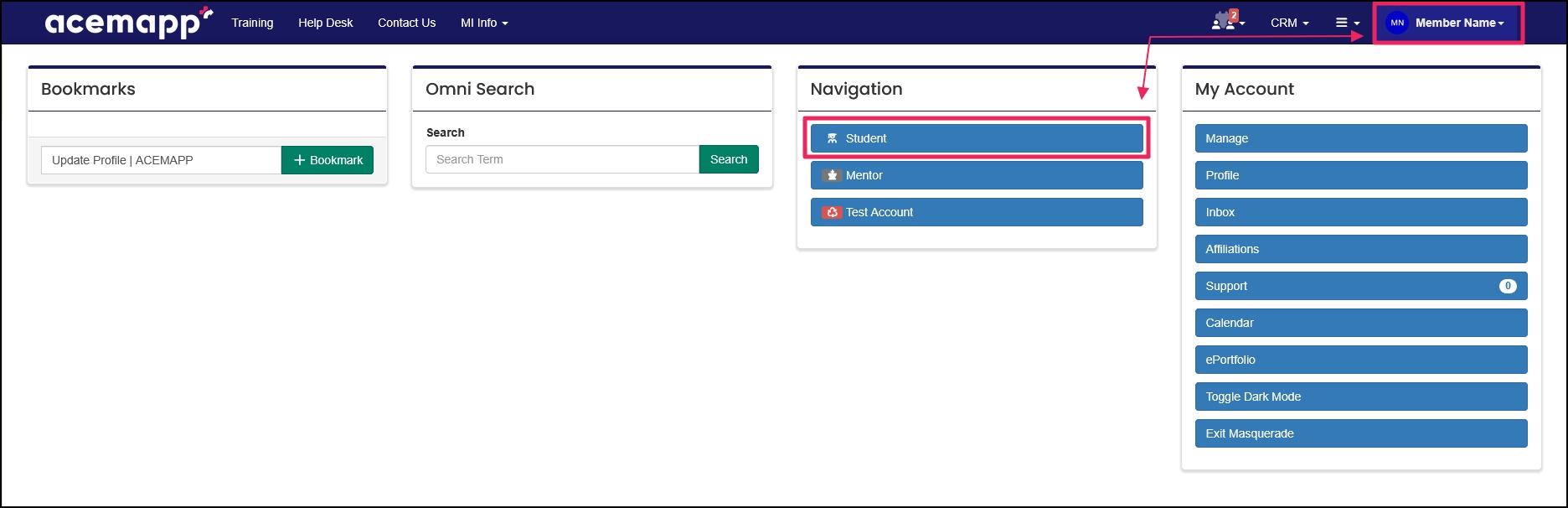
You can view your Student Home Page by clicking on your "Name" in the upper-right-hand corner of the screen and then clicking "Student" in the Navigation table.
NOTE: If you would like your organization to have the Student Mode feature enabled, please email support@acemapp.org or call (844) 223-4292.
